Affiliate disclosure: This article contains Amazon affiliate links. If you buy through them, EVThrottle may earn a commission at no extra cost to you.
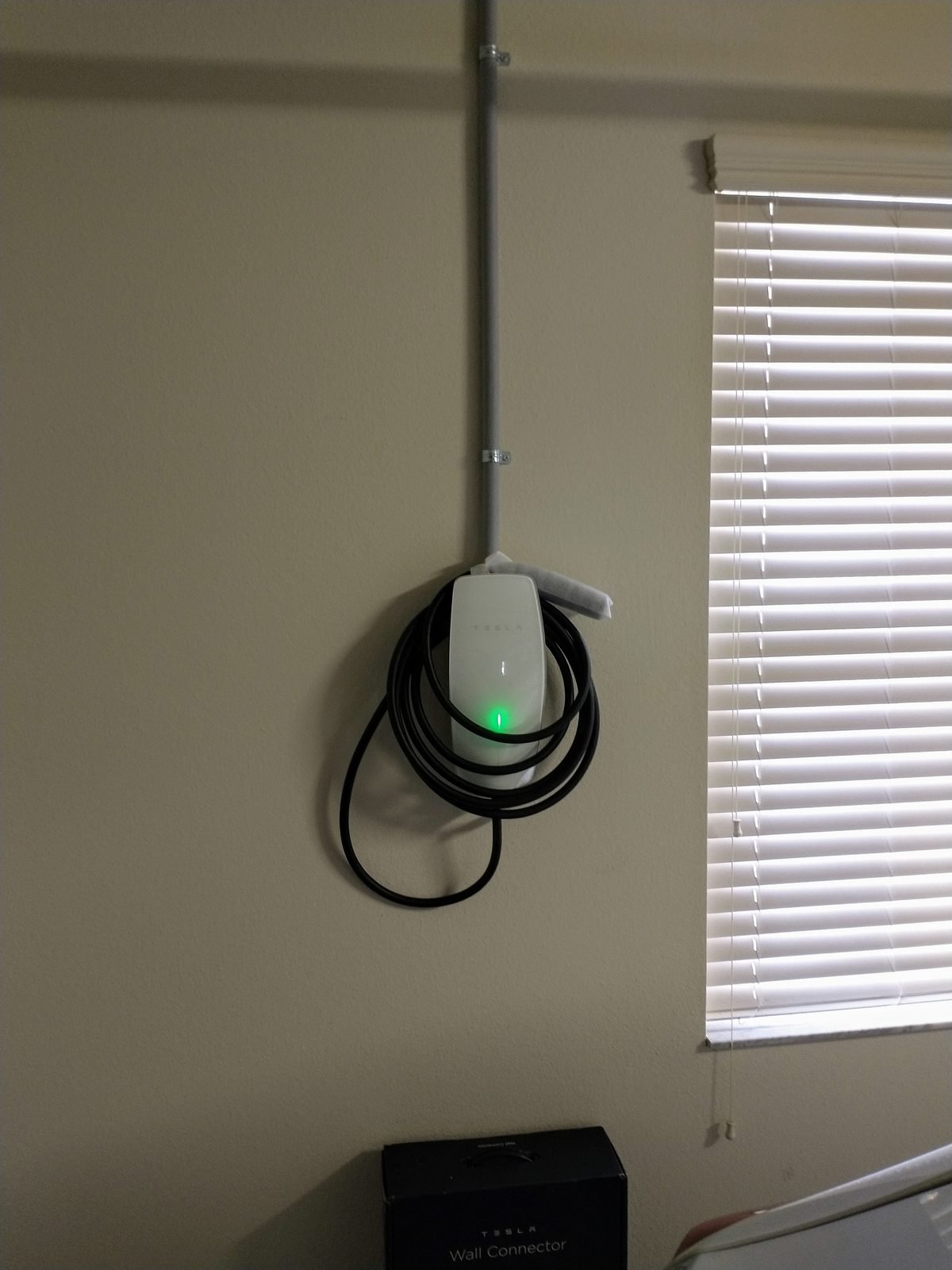
You walk into the garage, glance at the Wall Connector, and instead of the usual green glow there's a red light blinking at you. Your car isn't charging. Before you panic — or pay for an emergency electrician visit — know this: that blinking red light is a diagnostic code, and Tesla designed it to be readable. Count the flashes, and the unit is telling you exactly what's wrong.
This guide covers the Gen 3 Wall Connector (the glass-front unit Tesla has sold since 2020 — it's what the vast majority of owners have). The codes below come straight from Tesla's installation manual, and the 4 troubleshooting steps are the ones that actually resolve most red-light faults. One important correction to things you'll read elsewhere online: some articles mislabel the 5-blink code as a grid problem. It isn't — the real meanings are in the table below.
Step 1: Count the flashes
Watch the light bar through three full cycles. The pattern is a group of red blinks, a one-second pause, then the same group again. Write down the number — that number is your diagnosis. (A solid red light with no blinking is a separate case: an internal fault. Skip to Step 2, and if it persists after a reset, contact Tesla Energy with your unit's part and serial numbers.)
Tesla Gen 3 Wall Connector red flash codes
| Flashes | What it means | What to do |
|---|---|---|
| 1 | Ground fault — unsafe current path detected | Inspect the handle, cable, connector, and charge port for damage or water. Needs an electrician to verify wiring. |
| 2 | Ground assurance fault — high ground resistance | Grounding problem in your home wiring. Check panel bonding; this one needs an electrician. |
| 3 | High temperature detected | Stop charging immediately. Check for warmth at the faceplate and handle. Often loose terminals or undersized wiring — electrician required. |
| 4 | Wi-Fi connection lost | Charging still works; only smart features are down. Check your router, then re-run commissioning to update Wi-Fi settings. |
| 5 | Power-sharing communication issue | Only relevant if you have multiple Wall Connectors linked. Re-run commissioning to re-link them. |
| 6 | Overvoltage or poor grid quality | Supply voltage outside 200–240V nominal. An electrician should verify voltage at the terminal block with a multimeter. |
| 7 | Vehicle overcurrent detected | Lower the charge current setting in the car. If it persists, contact Tesla with your VIN and the time of the fault. |
Source: Tesla Gen 3 Wall Connector installation manual, fault-code table. Note that 5 blinks is a power-sharing issue — not a grid problem, despite what some third-party guides claim.
Gen 2 vs Gen 3: which Wall Connector do you have?
The codes above are for the Gen 3 — the glass-front unit with the vertical light bar that Tesla has sold since 2020. If your unit is older, with a coiled cable and a round face, that's a Gen 2, and its fault codes are different (it uses a combination of red and green flashes rather than the 1–7 red blink system). The troubleshooting steps below work for both, but only match blink counts to the table if you have the Gen 3. When in doubt, check the part number on the unit's label: Gen 3 part numbers start with 1529455 or 1656561.
What the green lights mean (so you know what "normal" looks like)
It helps to know what healthy looks like. After the breaker goes on, all LEDs flash for a few seconds, then green LEDs indicate your breaker setting for about 10 seconds. In daily use: solid green on top means standby waiting for the car; streaming green means charging in progress; and if you hold the handle button for 5 seconds, the unit broadcasts its Wi-Fi for commissioning. Anything red — solid or blinking — is the unit asking for attention.
Step 2: The hard reset (fixes most temporary faults)
Before anything else, power-cycle the unit. This clears firmware glitches, temporary lockups, and minor voltage events:
1. Go to your breaker panel and find the dedicated double-pole breaker for the charger (usually 40A or 60A).
2. Flip it fully OFF and wait a full 60 seconds — this lets the capacitors drain completely.
3. Flip it firmly back ON.
4. Watch the faceplate: all LEDs light for a few seconds, then green LEDs show your breaker setting for about 10 seconds.
If it settles to solid green, you're done — it was a transient fault. If the red blinking returns, you have a real fault: go back to the table above and act on your specific code. One tip: note the time the fault appeared. If you end up calling Tesla or an electrician, "3 blinks starting at 2pm during the heat wave" is far more useful than "it blinks red sometimes."
Step 3: Check the obvious physical causes
With the breaker OFF, do a visual inspection — no tools, no panel opening:
The handle and cable: look for cracks, melted spots, or discoloration on the charge handle and along the cable. Check the car's charge port for debris or bent pins. Water ingress after heavy rain is a real cause of 1-blink ground faults.
Heat: feel the faceplate and handle (breaker back ON for this, but don't charge). Excessive warmth points to the 3-blink thermal fault — loose terminal lugs or undersized conductors inside the wall box are the usual culprits, and that's electrician territory.
Sun exposure: if the unit is mounted outdoors in direct sun, heat buildup plus a 48-amp continuous load can trip the thermal sensor on hot days. A weatherproof cover helps — WOLFCAR's Wall Connector cover is Amazon's Overall Pick in the EV charger cover category (UV-resistant, buckle straps). Search "Tesla Wall Connector cover" on Amazon for the current listing; the unit itself is outdoor-rated, but shade reduces thermal faults.
Step 4: Re-run commissioning (for 4- and 5-blink faults)
If you're seeing 4 blinks (Wi-Fi) or 5 blinks (power-sharing), the fix is usually software. Hold the button on the charge handle for 5 seconds to broadcast the unit's Wi-Fi network, connect your phone to it, open a browser to 192.168.92.1, and walk through the commissioning wizard — update Wi-Fi credentials for 4 blinks, re-link power-sharing groups for 5 blinks. This also pulls the latest firmware, which improves temperature sensing.
Preventing the next red light
A few habits reduce repeat faults. Keep the unit's firmware current — connect it to Wi-Fi during commissioning and let auto-updates run, since Tesla ships thermal-sensing improvements in firmware. If the charger lives outdoors, a weatherproof cover cuts the solar heat load that triggers summer thermal faults. Once a year, have your electrician check terminal torque during routine panel maintenance; loose lugs are the slow-building cause behind many 3-blink faults. And after any utility outage, give the grid a few minutes to stabilize before resetting — voltage swings as power returns are a classic trigger for the 6-blink code.
When the red light means danger — stop and call a professional
Some faults are not DIY territory. Stop troubleshooting and call an electrician if: you see 3 blinks (overheating) and the unit or handle feels hot; the breaker trips repeatedly; you smell burning or see discoloration; or you have 1, 2, or 6 blinks that persist after a reset — those are wiring faults inside a 240V system, and opening the unit yourself risks serious injury.
For 1- and 2-blink ground faults, Tesla's own manual says to have an electrician verify the wiring with a multimeter (L1-to-ground, L2-to-ground readings). This isn't a suggestion — ground faults on high-amperage circuits are a fire risk.
Still flashing red? Get a vetted local EV electrician
If your Wall Connector keeps throwing a fault code — especially 1, 2, 3, or 6 blinks — it's likely a grounding, thermal, or supply issue in your home's wiring. Get a fast quote from a certified local EV electrician:
How to find a certified EV electrician (without the form)
Prefer to search yourself? Tesla maintains an official Wall Connector support page with troubleshooting flows, and its Find Us page lists certified installers by location. Qmerit is Tesla's longtime installation partner in the US and quotes EV charger work directly. Whichever route you take, confirm the electrician is licensed in your state and has done EVSE installs before — a general handyman is not the right call for a 60-amp circuit.
Frequently asked questions
What does a blinking red light on a Tesla Wall Connector mean?
It's a fault code. On the Gen 3 Wall Connector, 1 to 7 red blinks each indicate a specific problem: ground fault, grounding issue, overheating, lost Wi-Fi, power-sharing communication failure, bad supply voltage, or vehicle overcurrent. Count the blinks between pauses to identify yours.
How do I reset a Tesla Wall Connector with a red light?
Turn the dedicated circuit breaker fully off, wait at least 60 seconds, then turn it back on. If the red light returns, count the blink pattern and match it to Tesla's fault-code table before doing anything else.
Is a blinking red Wall Connector dangerous?
It can be. Three red blinks means overheating — stop charging and don't force it. One or two blinks indicate grounding problems that need an electrician. Never open the unit yourself; 240V systems can kill.
Can I still charge my Tesla if the Wall Connector blinks red?
No — a red fault code means charging is disabled or reduced until the fault clears. You can still drive the car and charge at a public Supercharger while you troubleshoot.
Why does my charger only blink red when it's hot outside?
That's the 3-blink thermal fault. Direct sun on the unit plus a continuous 48-amp load can trip the temperature sensor. A weatherproof shade cover helps for outdoor installations, but persistent thermal faults need an electrician to check terminal torque and wire sizing.
What's the difference between Gen 2 and Gen 3 fault codes?
The Gen 3 (glass front, sold since 2020) uses 1–7 red blinks plus solid red. The older Gen 2 uses a different system combining red and green flashes. Check the part number on the unit's label before matching any code table.
Will a firmware update fix the red light?
Sometimes. Firmware updates improve temperature sensing and fix the communication bugs behind 4- and 5-blink faults. But no firmware update can fix wiring problems — 1, 2, 3, and 6 blinks are hardware faults that need an electrician, full stop.